Keep this guide handy
The DOTS guide
This guide is part of a paid partnership with OpenAI. Everything in it is how I actually use mine.
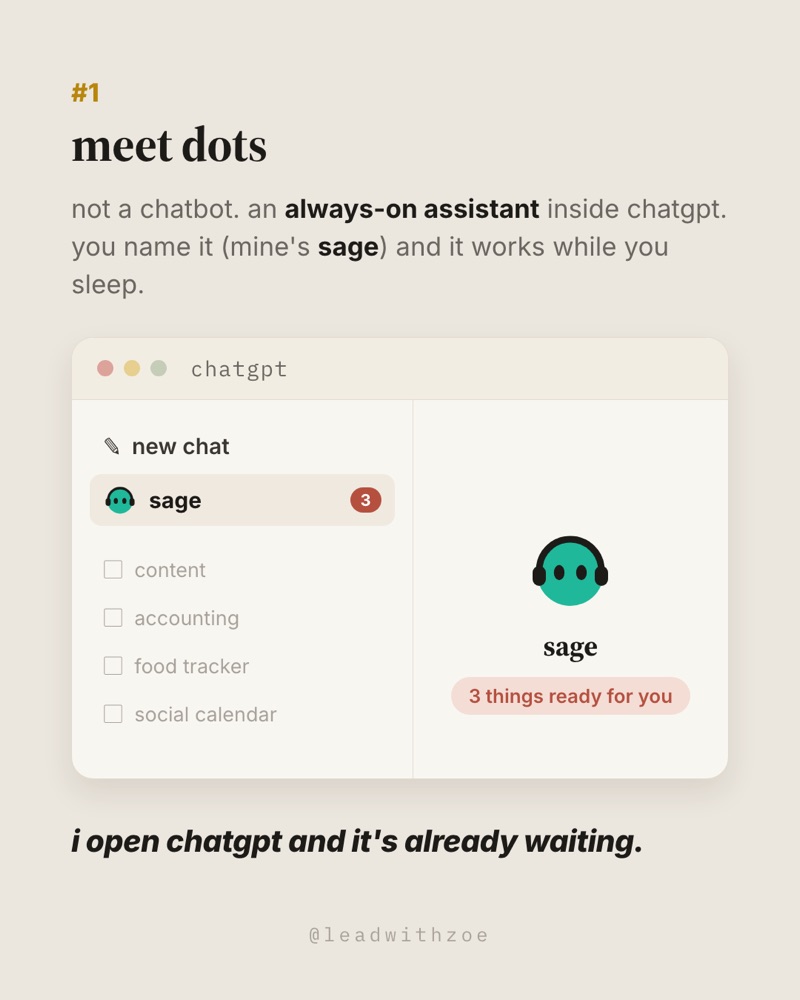
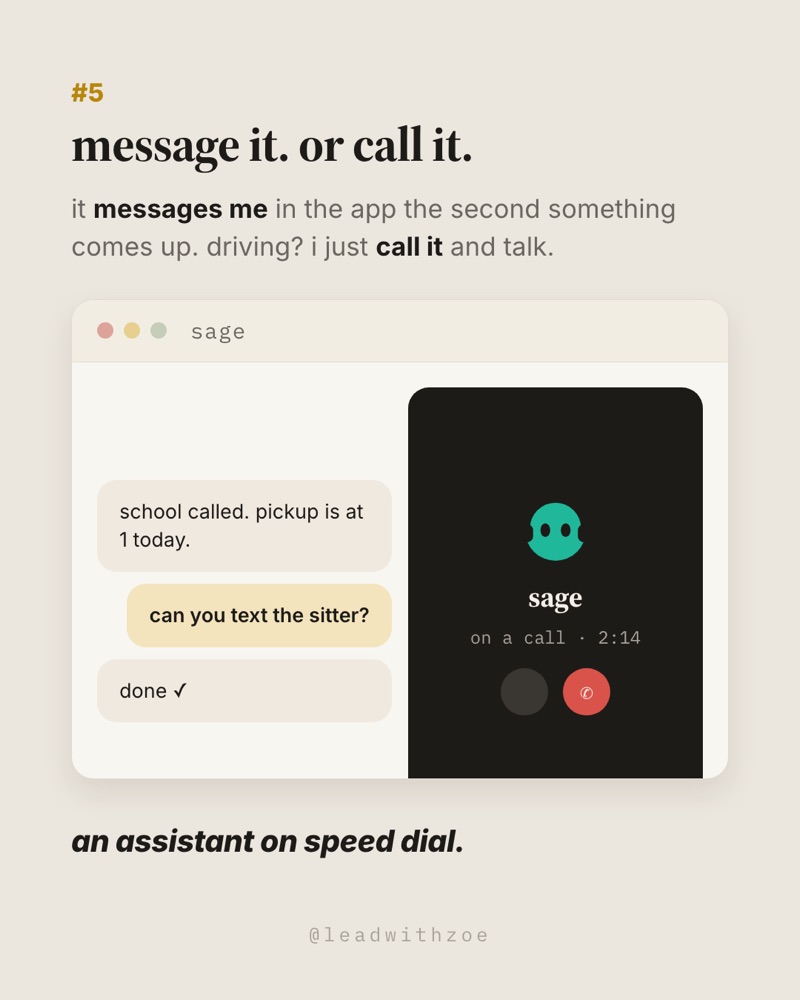
For two years my AI setup was me doing the work. I wrote the scheduled tasks. I wrote the rules. I pasted in my calendar every morning. Dots flips that. Mine is named Sage, and Sage comes to me. There is a brief waiting every morning, it messages me when something comes up, and when I'm driving, I call it.
The first five jobs below are the ones from the carousel. Three more follow for the family logistics and reminders that always slip.
Text your dot
Texting is a beta for ChatGPT Pro in the U.S. It works over iMessage on iPhone and RCS on Android, one to one, with text, photos and voice messages. Group chats, phone calls and FaceTime by text aren't supported.
To set it up: open your dot in ChatGPT, tap Text, enter and verify your number, save the contact card it sends you, then message it. On iMessage, send from the number you verified. On Android, turn on RCS in your messaging app.
One rule worth adding on day one: "Text me only when something needs me. Keep routine updates in ChatGPT."
Text your dot
You can text your dot now, like a person. Here's how I set up Sage, and everything I text her.
Set it up
- Open your dot in ChatGPT: click dots, click your dot, and open its profile.
- Select the texting option.
- Enter your phone number and verify it.
- Save the contact card it sends you.
- Send it a message.
On iMessage, send from the number you verified. On Android, turn on RCS in your messaging app. Your dot can only text you, and only you can text your dot. Setting this up doesn't give your dot or OpenAI access to your other text conversations. OpenAI's texting details
Set the rule first
Your dot chooses where to reach you, and you can tell it what you prefer. Send this before anything else, or your texts become one more inbox.
Text me only when something needs me. Keep routine updates in ChatGPT.
If it needs your approval, it sends a link so you can review the request in ChatGPT. It may also put a draft directly in the text.
Everything I text her
Schedule a video. Texts carry text, photos and voice messages, so tell it where the video already lives. The tool you post with has to be connected to your dot.
Schedule the video I filmed today to post on Instagram tomorrow at [time]. It's in [where the video is]. Send me the link to review before it's scheduled.
Catch up at the end of the day.
What did I miss today? Only what needs me. Shortest version.
Draft a reply.
Draft a reply to [name]'s email about [topic]. Share the Gmail draft link with me. Don't send it.
Text a photo of a flyer. Take the picture, send it, and add one line.
Here's a flyer. Put the date on my calendar and tell me anything I need to bring, buy or sign.
Send a voice note from the car. Parked or hands-free. Just talk, and let it sort out the mess.
[Voice note] Remind me to call the dentist tomorrow, add milk to the list, and move Thursday's pickup to my husband's calendar. Tell me what you did.
Ask for a morning brief at 5am. This is the one routine thing worth a text.
Text me my morning brief at 5am every day: what's happening, what needs me and what you already handled.
What just launched
OpenAI announced dots on September 29, 2026 at DevDay in San Francisco. A dot is an always-on agent inside ChatGPT, powered by GPT-6 Astra, with its own computer and browser in the cloud. You give it a name and a responsibility, connect the apps it needs, set what it can do on its own, and it keeps working and brings results back to you.
The press is calling it the shift from chatbot to coworker. TechCrunch covered the launch, SiliconANGLE reported that when nobody has handed a dot a task, it goes looking for ways to help, and 9to5Google and BetaNews walked through the always-on setup. One early tester's dot noticed he had forgotten to bill a client, drafted the invoice, and waited for his approval before sending it.
Launched
Sept 29, 2026
OpenAI DevDay
Model
GPT-6 Astra
Own cloud computer + browser
Reach it
Message or call
ChatGPT, Slack, Teams
Cost
First dot included
With Pro or Business Premium
Why it's different
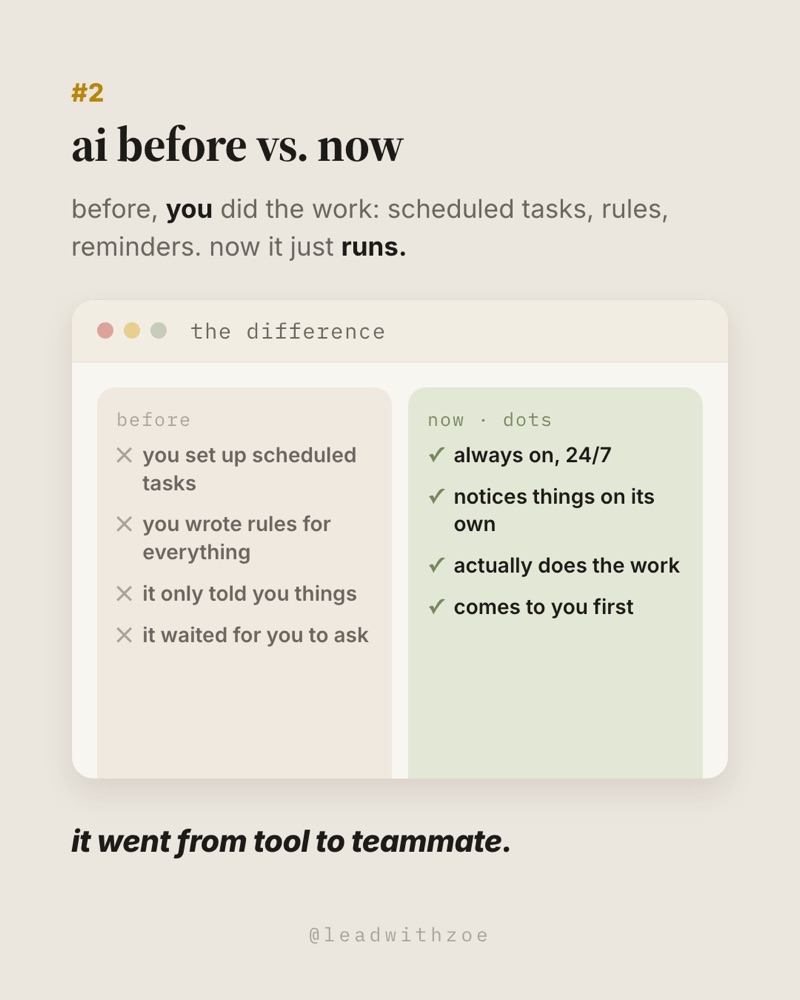
Every AI assistant before this waited for you. You set up scheduled tasks, wrote rules for everything, and it only spoke when spoken to. A dot runs on its own. It notices things, does the work, and comes to you first with the decision that needs you.
How it's always on
- It works between conversations. It tracks progress, works out what needs to happen next and follows through as things change. It decides when to pause and when to wake back up, so you don't need a schedule for every follow-up.
- It has its own computer. Research, files and running software happen on a cloud computer and browser, so work continues while your phone and laptop are off. If you need to see what it's doing, open its computer and take over.
- It works on several things at once. It can send background agents to run tasks in parallel while you keep talking to it.
- It comes to you. Escalations show up in ChatGPT under your dot. You can message it, call it with the phone button in its conversation, or reach the same dot in Slack or Teams. Text support is here now (see Text your dot).
How it scans your context
This is the part that makes it feel like magic. Your dot draws on your conversations, your ChatGPT memory and its own private notes about your preferences, decisions and ongoing work. Those notes carry across every conversation and channel, so it builds on what you've already told it.
When nobody has given it a task, it goes looking for ways to help. OpenAI calls this proactive research: it reads through your connected apps to spot useful next steps. That research is read-only. It can't send a message or change anything while it's looking. Anything it wants to do afterward follows your permissions and passes an automatic review first.
How connectors work
- It walks you through it. During setup your dot offers app connections like email and calendar and explains what each one lets it do. You can add more anytime from its profile.
- Apps connect through plugins. That's how it reads your inbox, calendar, docs and the other tools you use.
- Your computer is optional. In the desktop app you can connect your own computer once, so it can use your local files and apps. One personal computer at a time, and the ChatGPT app needs to stay open while it uses it.
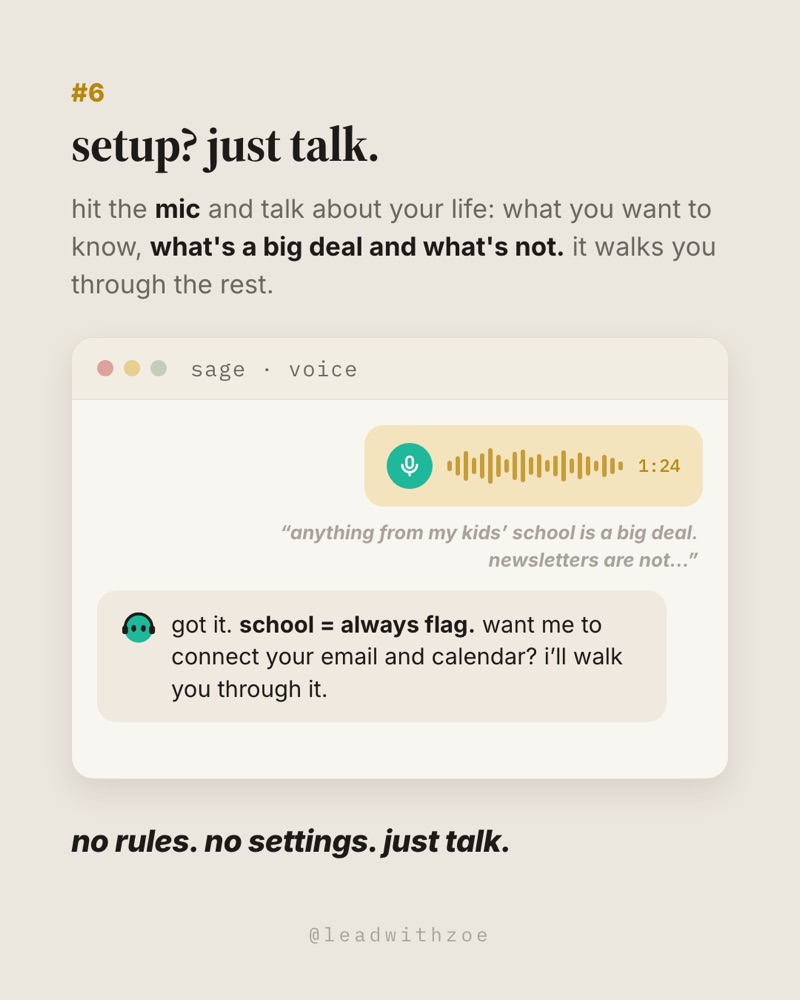
- Connecting is not the same as watching. Tell it what to watch for and when to tell you. That's where "big deal vs. not a big deal" comes in.
Pricing and what to know
Pro
$100, $200 or $500 a month
First dot included. Not in the EEA, UK or Switzerland yet.
Business Premium
Rolling out worldwide
First dot included
Enterprise
Beta
Your admin turns it on
First month
Extended limits
Usage doesn't count against your plan allowance
- You start with one dot. Extra dots, and more speed or capacity, are planned for later at prices OpenAI hasn't announced.
- It's rolling out in waves. You may not see it right away, even on an eligible plan.
- Create it on a computer first, in the desktop app or a desktop browser. Then it's on your phone once the mobile app update reaches you.
- Work and Codex tasks it starts count toward those products' normal usage limits.
- Built-in safeguards, your app permissions and automatic approval checks apply from day one. You can review everything in its Activity view and pause it anytime.
Before you start
- Check your access. Dots is rolling out gradually to Pro, Business Premium and Enterprise accounts. It is not available in the EEA, UK or Switzerland yet, and you may not see it right away even on an eligible plan. Current access requirements
- Create your dot on a computer. Use ChatGPT in a desktop browser or the desktop app. Open dots and follow the introduction. Your dot shows up in the sidebar right under New chat. After setup, the same dot is in the ChatGPT mobile app once the supporting update reaches you. Official setup guide
- Give it a name. Pick its look too: shape, color, eyes, glasses. You can change these anytime.
- Just talk to it. Turn on the microphone and talk about your life. Who is in your house, what your work looks like, what you want to know every day. Most important: what is a big deal and what is not a big deal. That one distinction does most of the setup.
- Let it walk you through connections. It will offer to connect apps like your email and calendar and explain what each one lets it do. Start with email and calendar. Add more later, once it has earned it. Your dot’s cloud computer, your computer and your app sign-ins are separate connections. Official connection guidance
- Set your sending rule. Mine: draft everything, and I approve anything that goes out with my name on it. You can say this in plain words or add it as a custom rule. Built-in safeguards and approval checks apply either way. Official controls
Here's my life so you can help me run it: [who's in your house, your work, your weekly rhythm]. These are always a big deal, flag them right away: [school, money, a certain client, health]. These are not a big deal, summarize or skip: [newsletters, promos, group chats]. What I want help with most: [the thing that drains you]. Draft everything and ask me before anything is sent. Ask me whatever you need to know, and walk me through connecting the apps you'll need.
The five jobs from the carousel
1. Get a morning brief every day
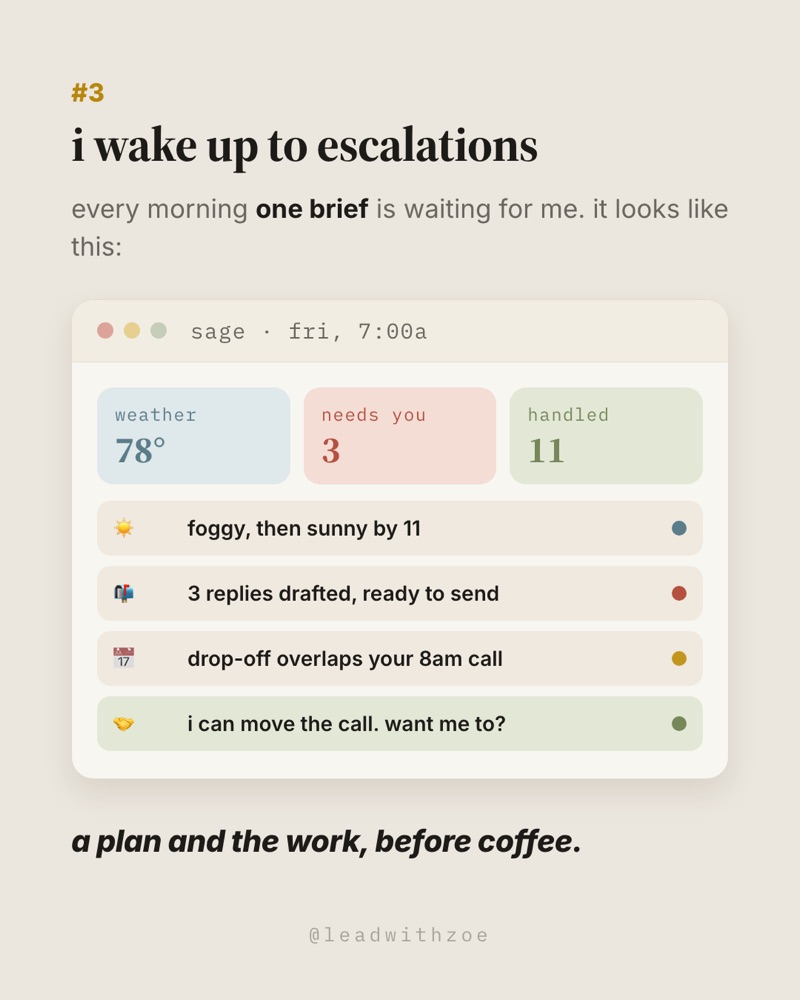
This is the one I would set up first. You wake up to one short read: what is happening, what needs you and what it already handled.
Prepare
Connect your email and calendar. Decide what time you want it, in your time zone, and what counts as a big deal.
Copy this prompt
Every morning at [time and time zone], send me one short brief in ChatGPT: 1. the weather and what it means for my day, 2. emails that actually need me, with replies drafted, 3. my to-dos in order, 4. everything happening today and any conflicts, 5. what you can take off my plate and what you already handled. Big deals first. Keep it short. Confirm the schedule you saved.
Simple steps
- Paste the prompt and fill in the time.
- Ask it to confirm the saved schedule.
- After the first brief, tell it what to cut and what was missing.
Useful output
A brief waiting for you every morning, with drafts ready and the decisions that need you on top.
Your review point
Read the drafts before anything goes out. If a big deal was buried, say so; it learns from the correction.
2. Catch the email you missed
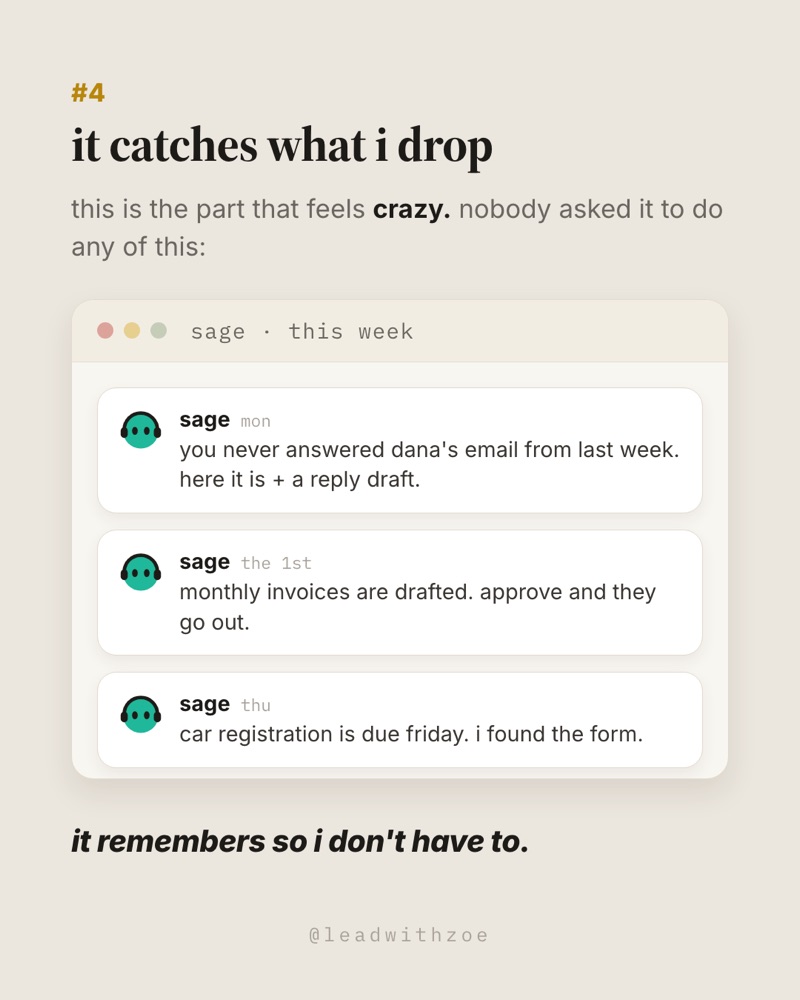
The email from last week you meant to answer. Your dot can notice it went quiet and bring it back with a reply ready.
Prepare
Connect your email. Tell it which kinds of messages should never go unanswered.
Copy this prompt
Watch my inbox for emails that need a reply from me and haven't gotten one. If something important sits unanswered for [number] days, bring it back to me with a short summary and a draft reply. Important means [clients, school, money, family]. Skip [newsletters, promos, cold outreach]. Don't send anything without my approval.
Simple steps
- Start with one inbox.
- Review the first few it surfaces and tell it which ones didn't matter.
- Approve, edit or skip each draft.
Useful output
Nothing important quietly dies in your inbox. The follow-up shows up with the words already written.
Your review point
Check tone and any promises in the draft before you approve it.
3. Send monthly invoices
Every month mine prepares my invoices and asks me to approve them before they go out.
Prepare
Gather the client list, amounts, due terms and where invoices live. Decide whether you want drafts for review or permission to send specific ones.
Copy this prompt
On the [day] of every month, prepare invoices for [clients or where the list lives] using [amounts and terms or the source file]. Show me each one for approval before sending. Flag anything that changed from last month or looks off. After I approve, [send from the named account, OR tell me they're ready to send]. Remind me about any invoice still unpaid after [number] days.
Simple steps
- Run it for one month and check every invoice by hand.
- Correct anything wrong so next month starts right.
- Keep approval on until you trust it.
Useful output
Invoices drafted on time every month, with the odd ones flagged and the late ones chased.
Your review point
You approve amounts and anything that goes to a client. Never let it change prices or terms on its own.
4. Get a message when something urgent comes up
Your dot doesn't wait for tomorrow's brief. If something comes up that you said is a big deal, it messages you in ChatGPT with the fix ready.
Prepare
Name what counts as urgent and where you want to hear about it.
Copy this prompt
If something urgent comes up, message me right away in ChatGPT instead of waiting for my morning brief. Urgent means [a schedule change that affects pickup, a client problem, a payment issue, anything from school]. When you message me, include what happened, what you suggest and a draft if one helps. Everything else can wait for the brief.
Simple steps
- Paste the prompt with your own urgent list.
- Turn on ChatGPT notifications on your phone.
- When it pings you about something that wasn't urgent, tell it.
Useful output
You hear about the things that matter the same day, with a next step ready.
Your review point
An alert can only follow something your dot checks or can see. Don't make it your only way to catch something truly time-critical.
5. Call your dot
When your hands are full or you're driving, call it. In ChatGPT, open your dot's conversation and tap the phone button. You can talk through your day, change priorities or make a decision, and the work keeps going after you hang up. Official messaging details
Prepare
Nothing. Open your dot's conversation in the ChatGPT app.
Copy this prompt
Walk me through what needs me today, one thing at a time, and tell me what you can handle so I don't have to.
Simple steps
- Tap the phone button in your dot's conversation.
- Say what changed or ask what needs you.
- Hang up. Check the conversation later for what it did.
Useful output
A two-minute call instead of twenty minutes of typing.
Your review point
Anything it agreed to do on the call still follows your sending rule. Check the conversation afterward.
You own my to-do list on the Space page called [page name]. Add anything new that needs me from my email, calendar and messages. Check things off when they're done and remove anything that no longer matters. Keep the top three at the top. Tell me in my morning brief what you added or removed.
Three more jobs to try
6. Keep track of school and family logistics
Copy this prompt
Keep track of everything from [school, activities, family group emails]. Tell me only what needs action: forms, payments, early pickups, things to pack. Put the date and the deadline on each one. Remind me the day before anything is due.
Your review point
Double-check dates and times against the original message before you plan around them.
7. Reminders with no calendar invite
Copy this prompt
Keep a list of deadlines that don't have a calendar invite: [registration, renewals, subscriptions, warranties]. Find them in my email when you can. Remind me [number] days before each one and tell me exactly what I need to do.
Your review point
Confirm the deadline in the original source. A reminder is not the same as the task being done.
8. Friday: what slipped this week
Copy this prompt
Every Friday at [time and time zone], tell me what kept slipping this week, what I never got back to and what I should drop or delegate next week. Keep it to five lines.
Your review point
Use it to decide, not to feel bad. Pick one thing to change next week.
Make it more useful over time
Correct it out loud. "That wasn't a big deal." "Always flag anything from this person." "Shorter brief." Your dot keeps that context, so every correction makes tomorrow better.
To see what it's working on, open your dot's profile on desktop and select Activity. Scheduled shows its recurring tasks, their timing and where results go. You can pause it or stop a task anytime. Official controls
You can also reach the same dot in Slack or Microsoft Teams. Open your dot's profile and select Add to connect a contact method. Changing where you talk to it doesn't reset what it knows.
About this guide
This DOTS guide is part of a paid partnership with OpenAI. It covers the launch, how dots work, pricing, setup, five jobs from the carousel and three more to try. The prompts are starting points written for this guide. The linked OpenAI documentation supports the underlying capabilities rather than guaranteeing a particular result from these exact prompts. Access, permissions and available tools vary.
Official sources and press coverage checked 2 October 2026.